
Plain Moodles
Project Zomboid: Enhance Your UI with Plain Moodles
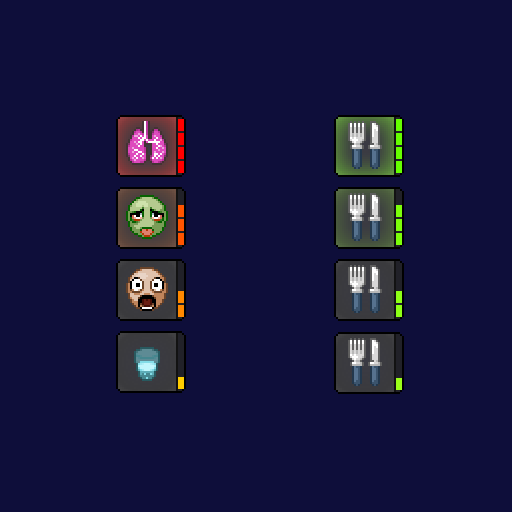
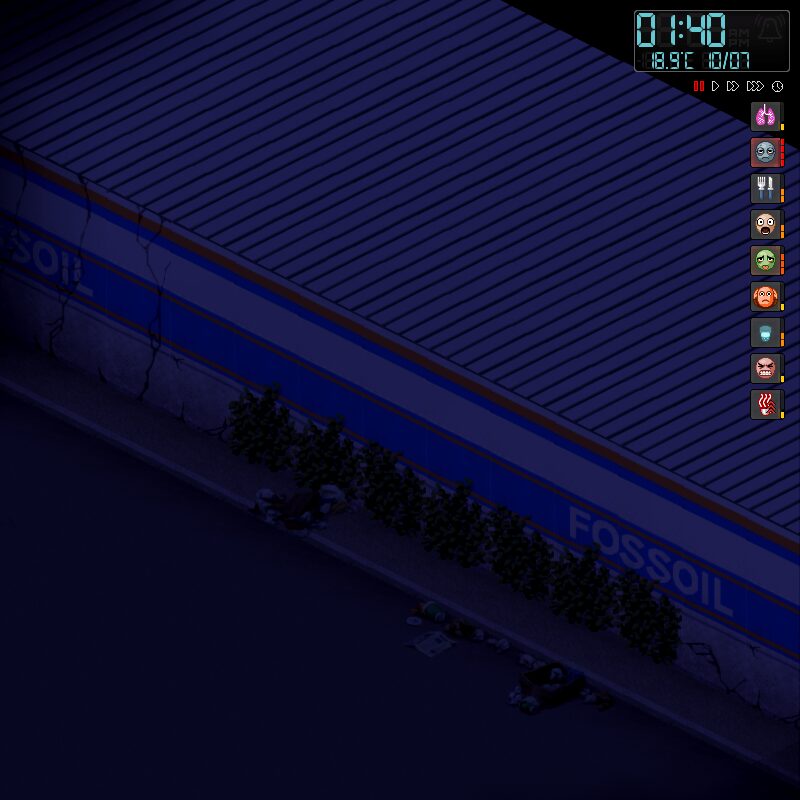
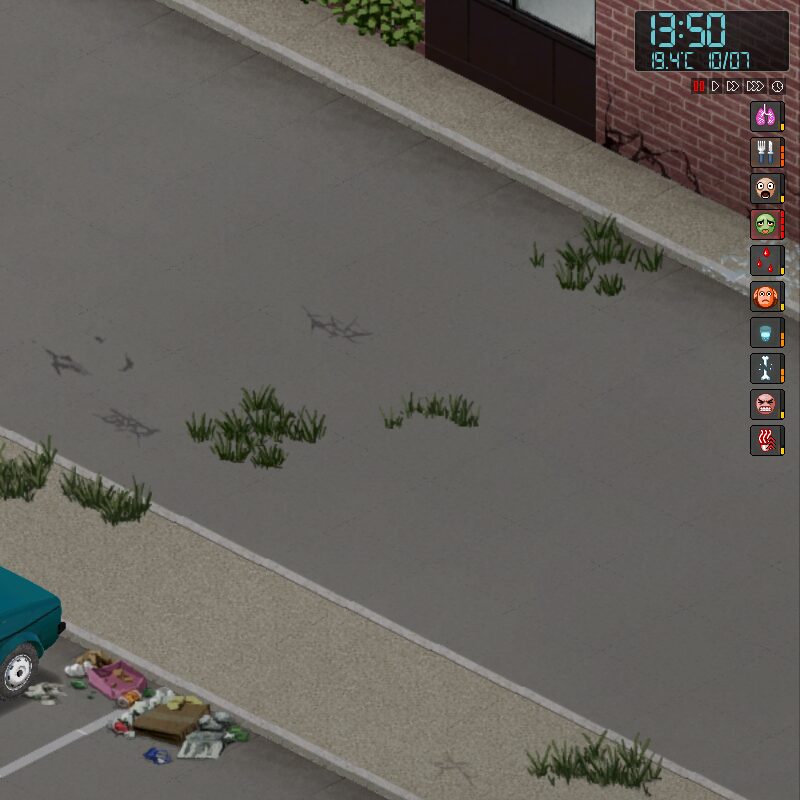
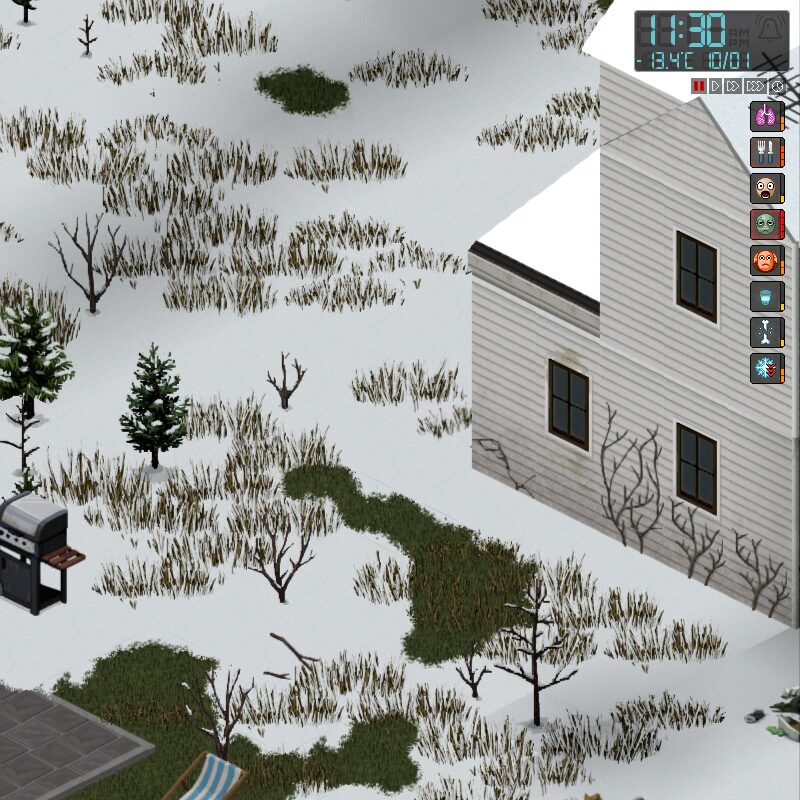
Tired of cluttered user interfaces in Project Zomboid? The Plain Moodles mod offers a streamlined visual experience, focusing on clarity and essential information. This mod provides minimalist, semi-transparent background textures for your character’s moodles, ensuring you can quickly assess their status without unnecessary visual distractions.
Subtle Yet Informative Displays
Plain Moodles focuses on enhancing the visibility of your character’s needs and conditions. By applying subtle, semi-transparent backgrounds to the moodle icons, the mod makes it easier to differentiate between various states while keeping the overall aesthetic clean. This is particularly helpful during intense gameplay scenarios where every second counts and quick information retrieval is crucial for survival.
Seamless Integration and Compatibility
One of the key advantages of the Plain Moodles mod is its ease of integration. It is designed to be fully compatible with multiplayer servers and can be safely enabled or disabled on existing save files without causing any issues. This flexibility allows players to experiment with their UI setup or adopt the mod at any point in their playthrough.
Key Features and Compatibility Notes:
- Minimalist, semi-transparent background textures for moodles.
- Enhances clarity and reduces UI clutter.
- Fully compatible with multiplayer.
- Safe to add or remove from existing saves.
- Works with many other UI and Moodle framework mods.
The mod boasts excellent compatibility with a wide range of other Project Zomboid modifications. It plays well with mods like Clear description for Moodles, Weather Moodles, and Big Moodles. It also supports MoodleFramework and mods that utilize it, as well as various progress indicator modifications. However, it’s important to note that Plain Moodles is generally incompatible with mods that directly alter the background textures of moodles themselves, such as Moodle Quarters or Simple Number Moodles. It also conflicts with mods that overhaul the entire UI pack, like Big Progress Bar.
Troubleshooting and Implementation
If you encounter any issues with the mod not appearing correctly, ensure it is enabled within the game’s MODS menu and has been added to your specific save file via the ‘More…’ > ‘Choose mods…’ option. For server hosts, verification of the mod’s activation in both the Steam Workshop and Mods tabs within server settings is necessary. You can always confirm active mods by checking the Mods button in the Pause menu during gameplay.