
Brotato Online
Experience Brotato Together with Brotato Online
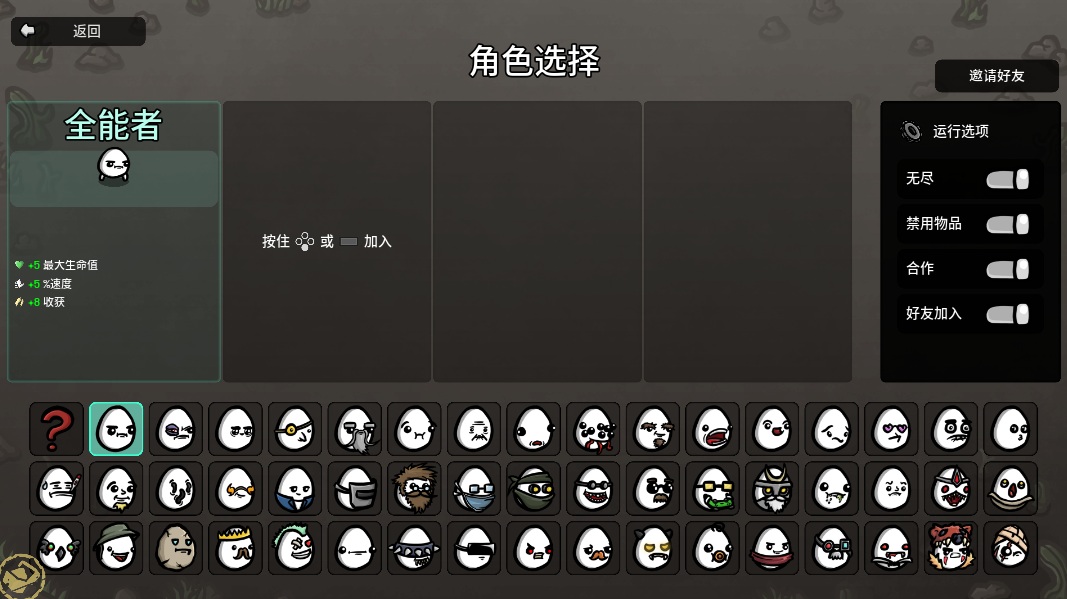
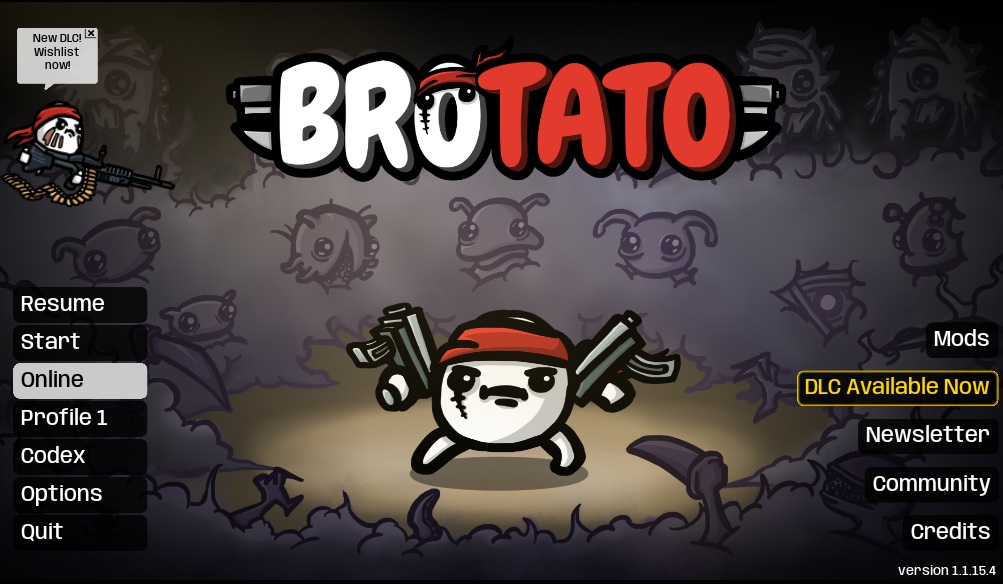
Are you ready to take your Brotato sessions to the next level? The Brotato Online mod opens up a world of cooperative chaos, allowing you to team up with friends and face the alien onslaught together. This powerful modification leverages Steam’s Peer-to-Peer networking to facilitate seamless online multiplayer, whether you’re joining a private game with your buddies or jumping into a public lobby.
Getting Started and Key Features
To dive into the action, ensure all participating players have the Brotato Online mod enabled. For the smoothest experience, it’s a good idea to adjust your in-game settings. Setting “When Focus Is Lost” to “Do Nothing” in the main menu’s vanilla settings can prevent unexpected issues when you need to alt-tab or press the Escape key. Synchronization is key, so aim for all players to use the same version of the mod. If you connect both a keyboard and a controller, the game will prioritize controller input.
Brotato Online offers several convenient features:
- Remote multiplayer support via Steam P2P.
- Play with friends through private lobbies or join public games.
- Supports the original game’s “Continue Game” feature for easy reconnections.
- Provides a framework for modders to create compatible online experiences.
Multiplayer Dynamics and Troubleshooting
The mod cleverly handles unlock statuses to prevent synchronization bugs. During a multiplayer session, the host’s unlock progress dictates available characters and weapons. While clients might see some items as locked or unlocked based on the host’s status, your personal unlock progress is preserved. Content unlocked during a multiplayer session will carry over to your single-player game. If you wish to use your own unlock progress exclusively, consider hosting the game yourself.
When playing with DLC owners and non-owners, it’s recommended that the player without DLC hosts the session to avoid shop item replacements. If you encounter connection issues, such as persistent “Connecting” messages, checking your Steam P2P connection quality can help diagnose the problem. Should you experience startup crashes or find the mod isn’t appearing, disabling other mods, ensuring Steam is updated, and verifying mod version consistency are crucial troubleshooting steps.